001
Thread List ManagementThread Management
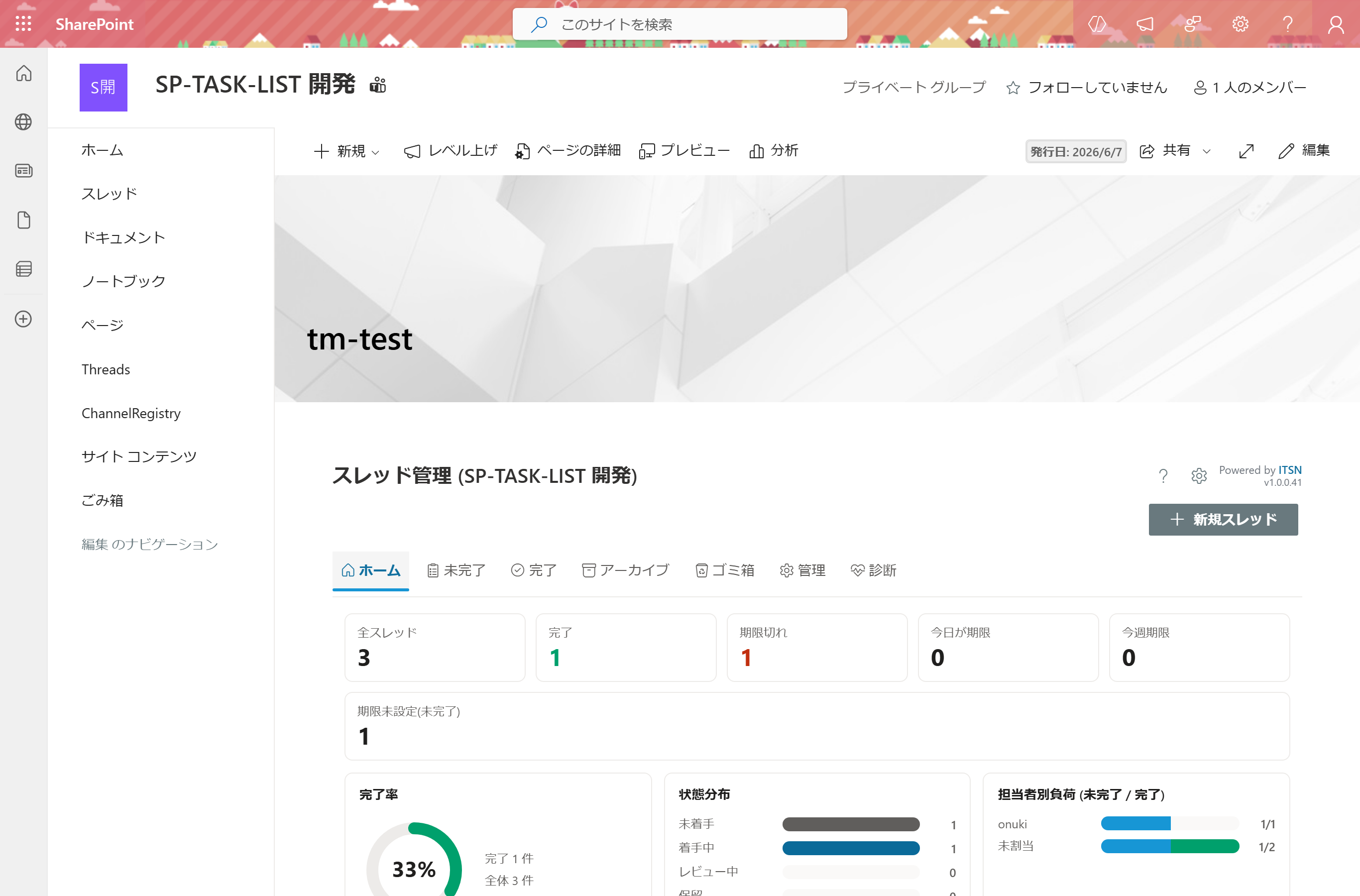
Automatically ingests Teams channel threads and separates them into pending and completed. Title, author, status, due date, priority, and tags — all six fields in one view.
Track every Teams channel thread to its final "done."
ThreadManager is a SharePoint Framework web part that brings Microsoft Teams channel posts through to completion. It deploys to each team's own SharePoint site — no central server, no extra license. Secure, low-cost, and proven inside ITSN.
Requests, questions, and incident reports fly through Teams channels and disappear in the scroll. Do you find yourself hunting back through threads asking "whatever happened to that?"
ThreadManager automatically captures channel threads as tasks and lets you manage assignee, status, due date, and priority in a single view. When a thread is resolved, one click sends a Teams native notification to everyone involved. Zero loose ends.
Real screenshots from v1.0.0.85. From list management to Kanban, Gantt, and Calendar — everything runs natively inside Teams and SharePoint.
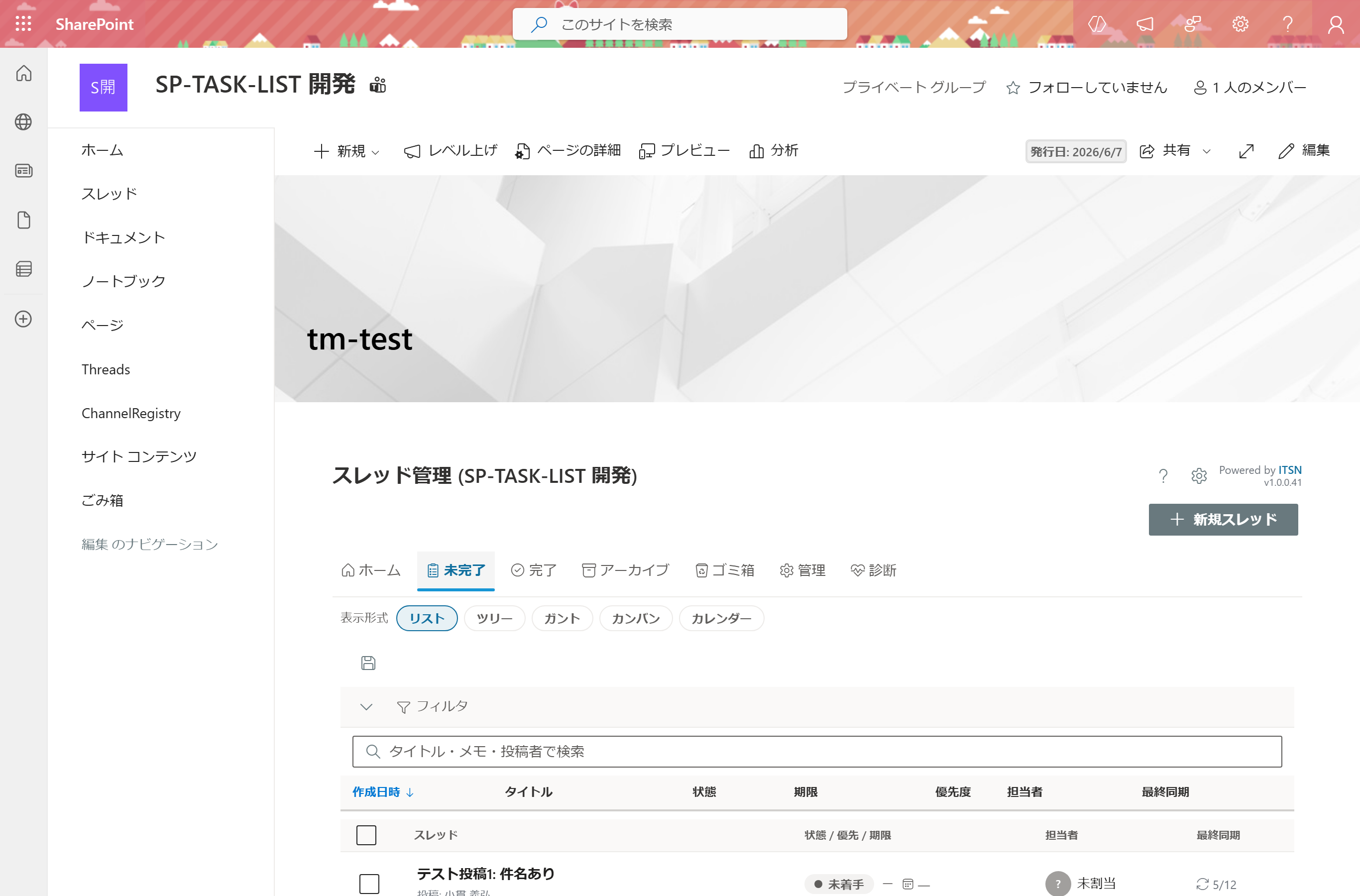
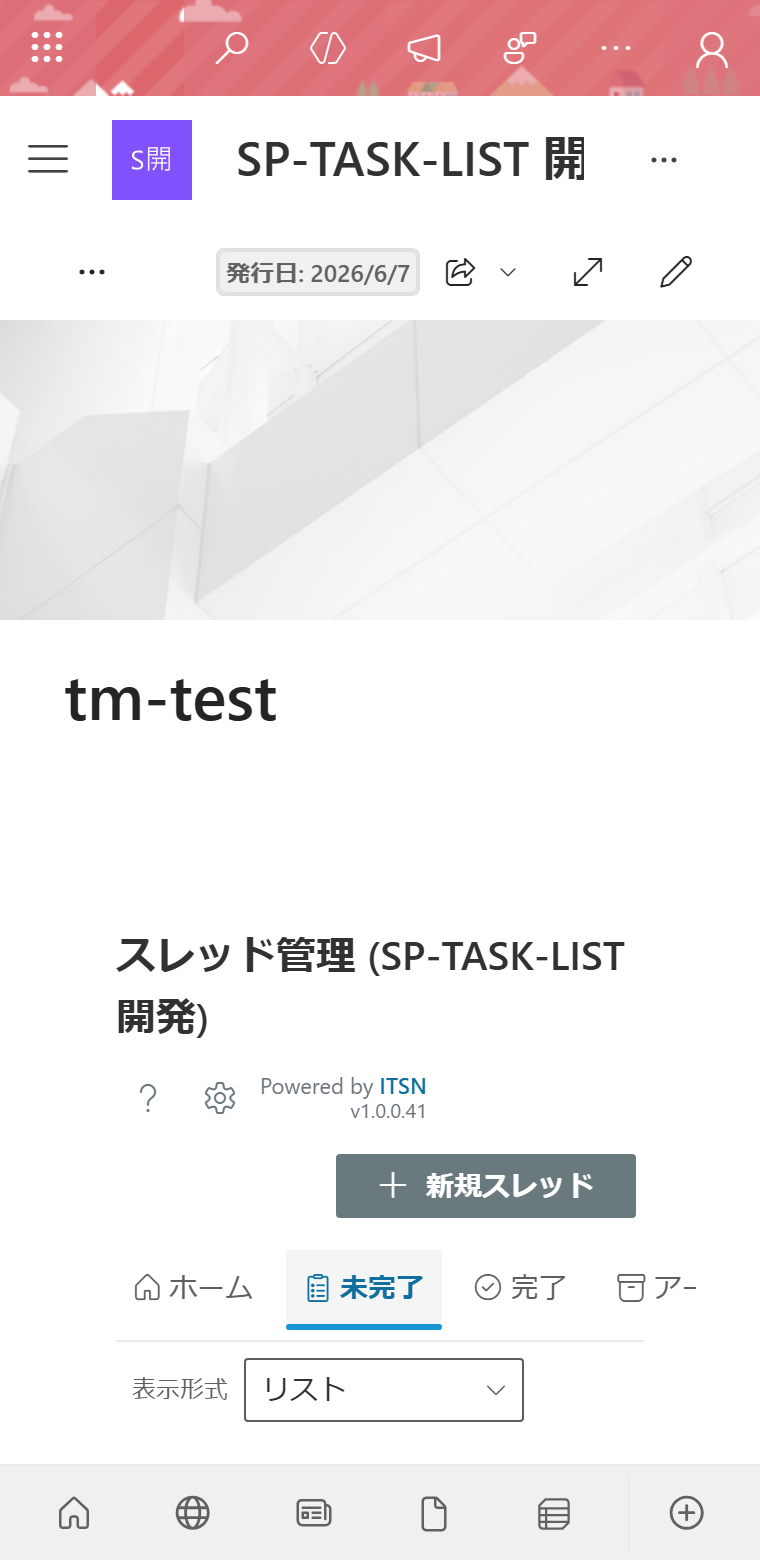
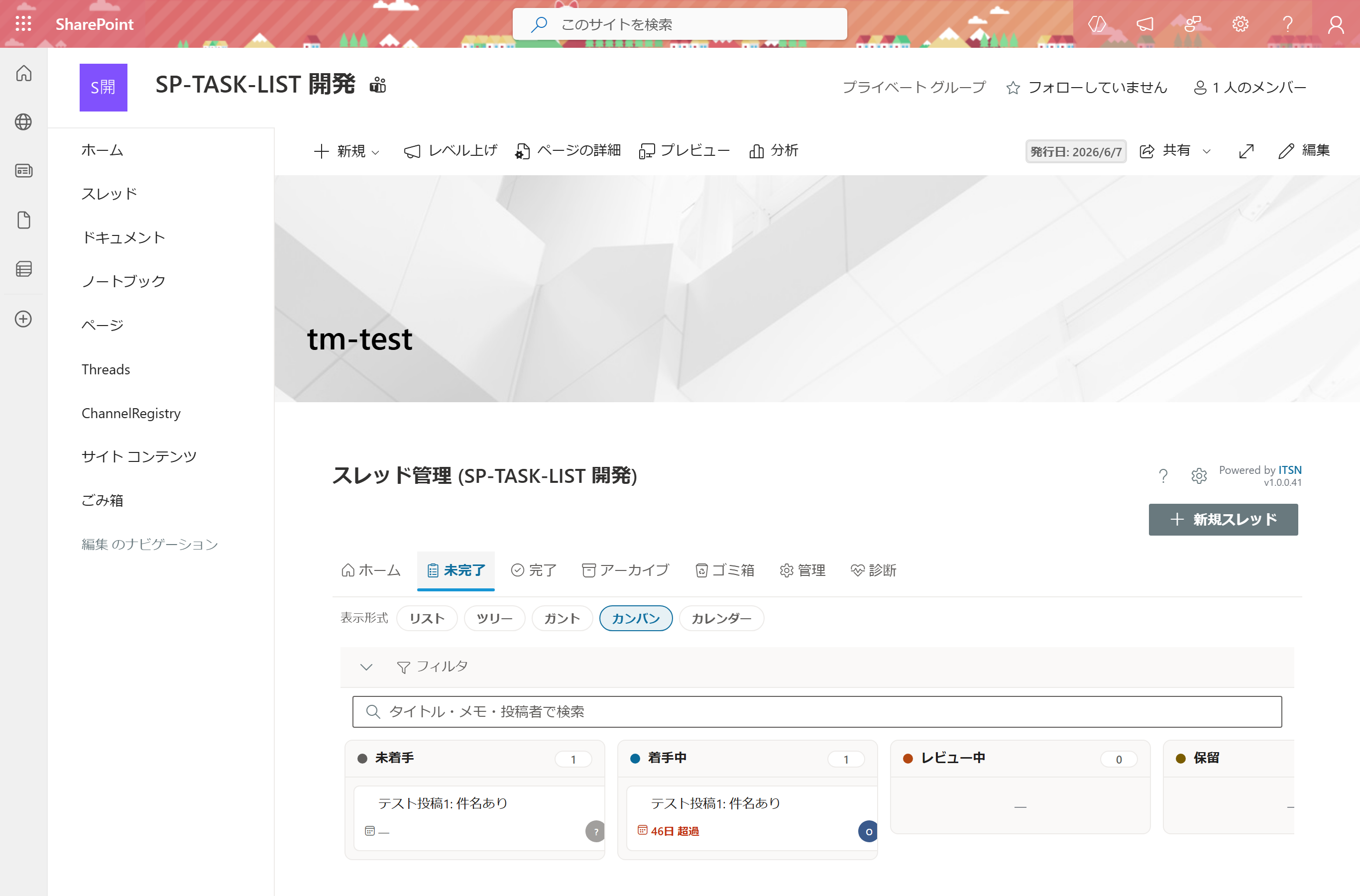
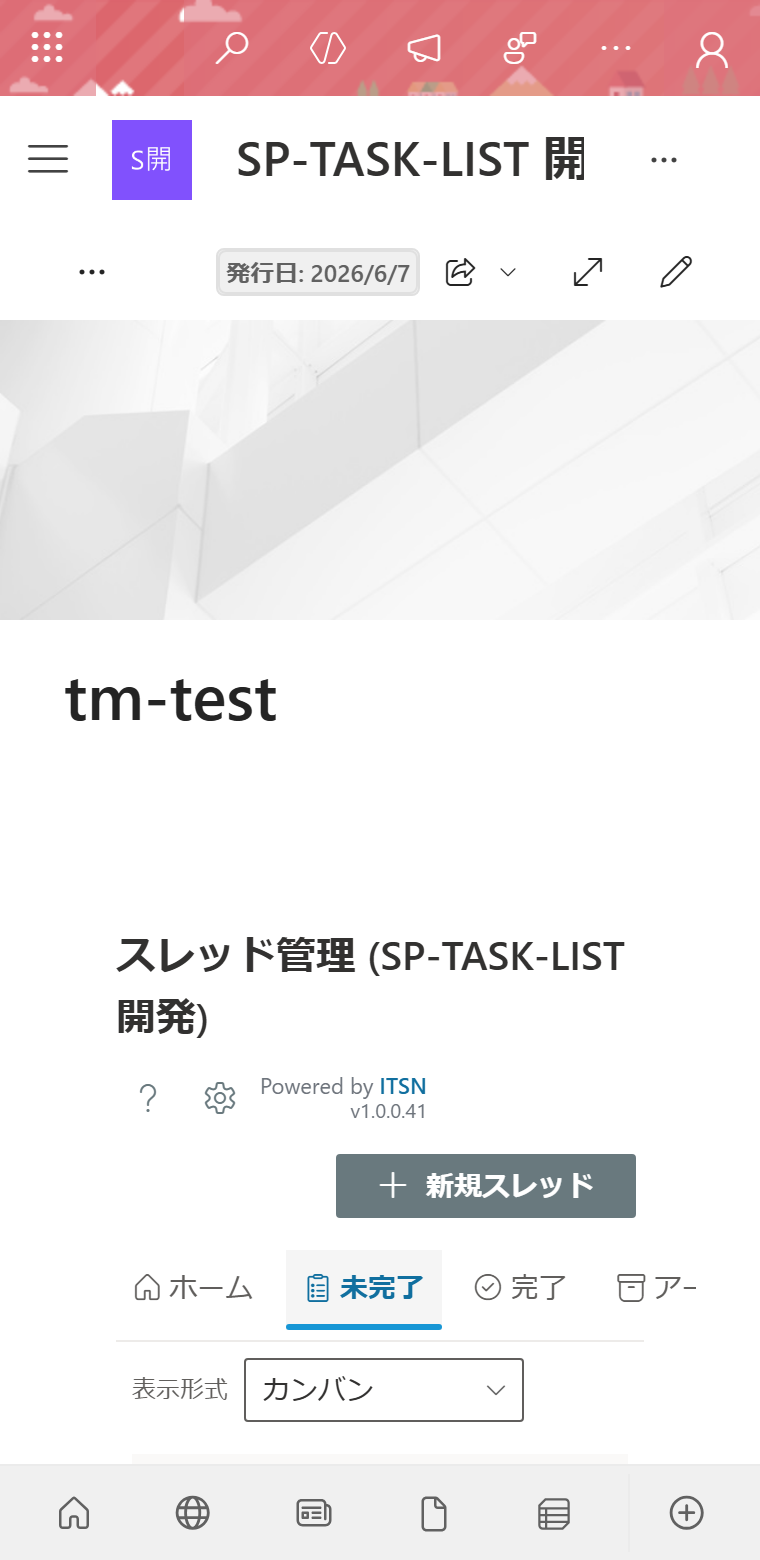
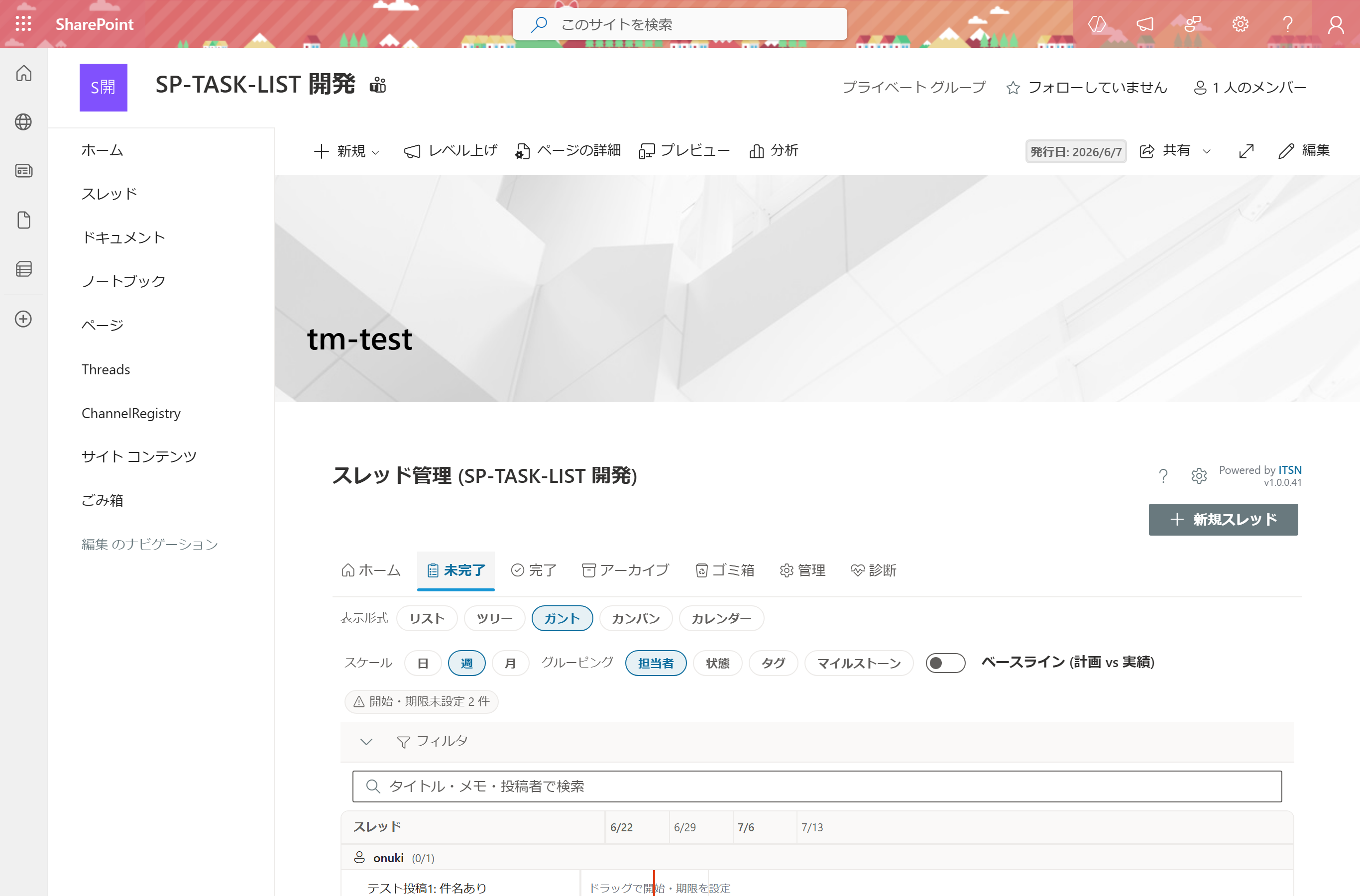
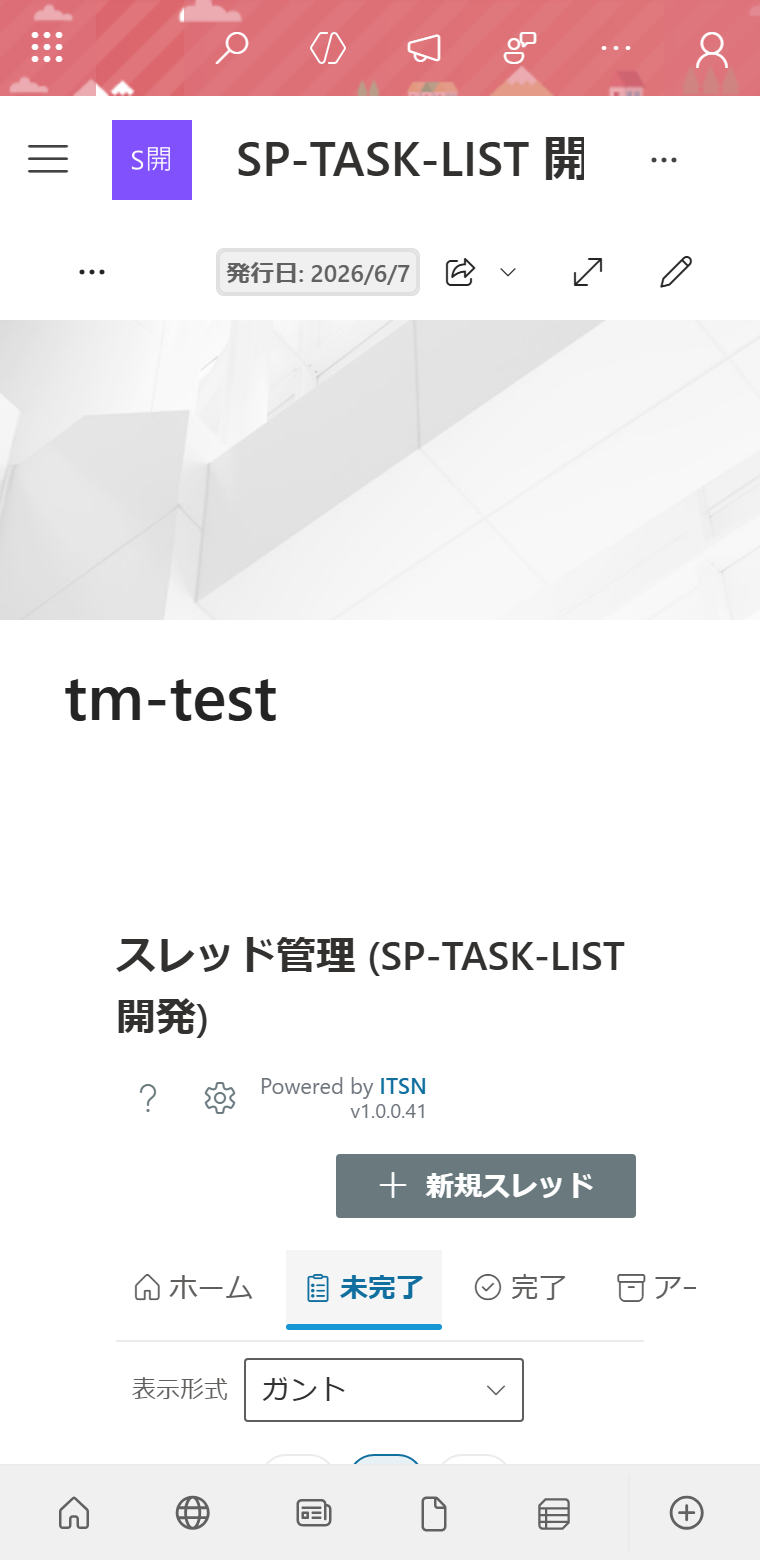
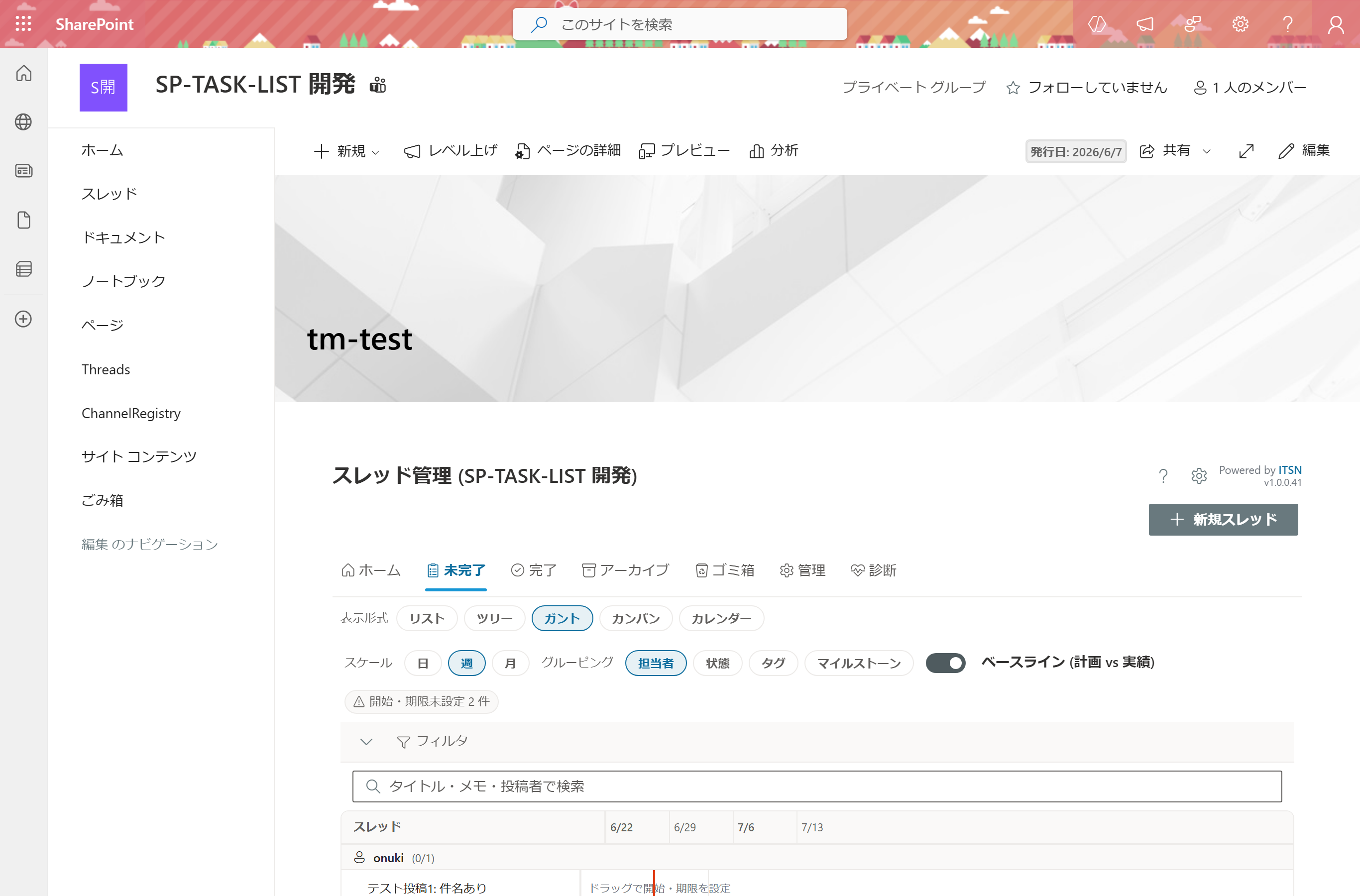
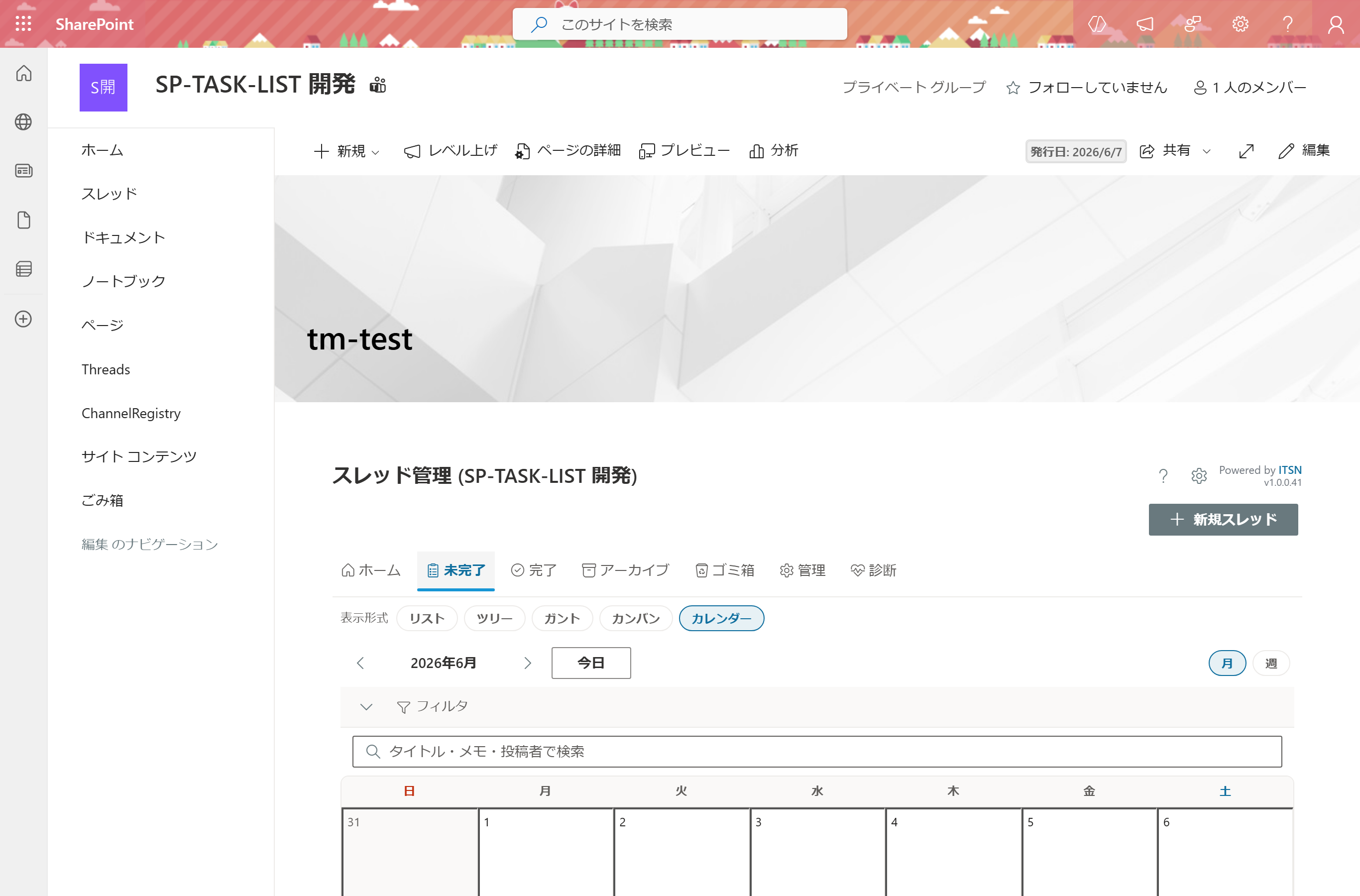
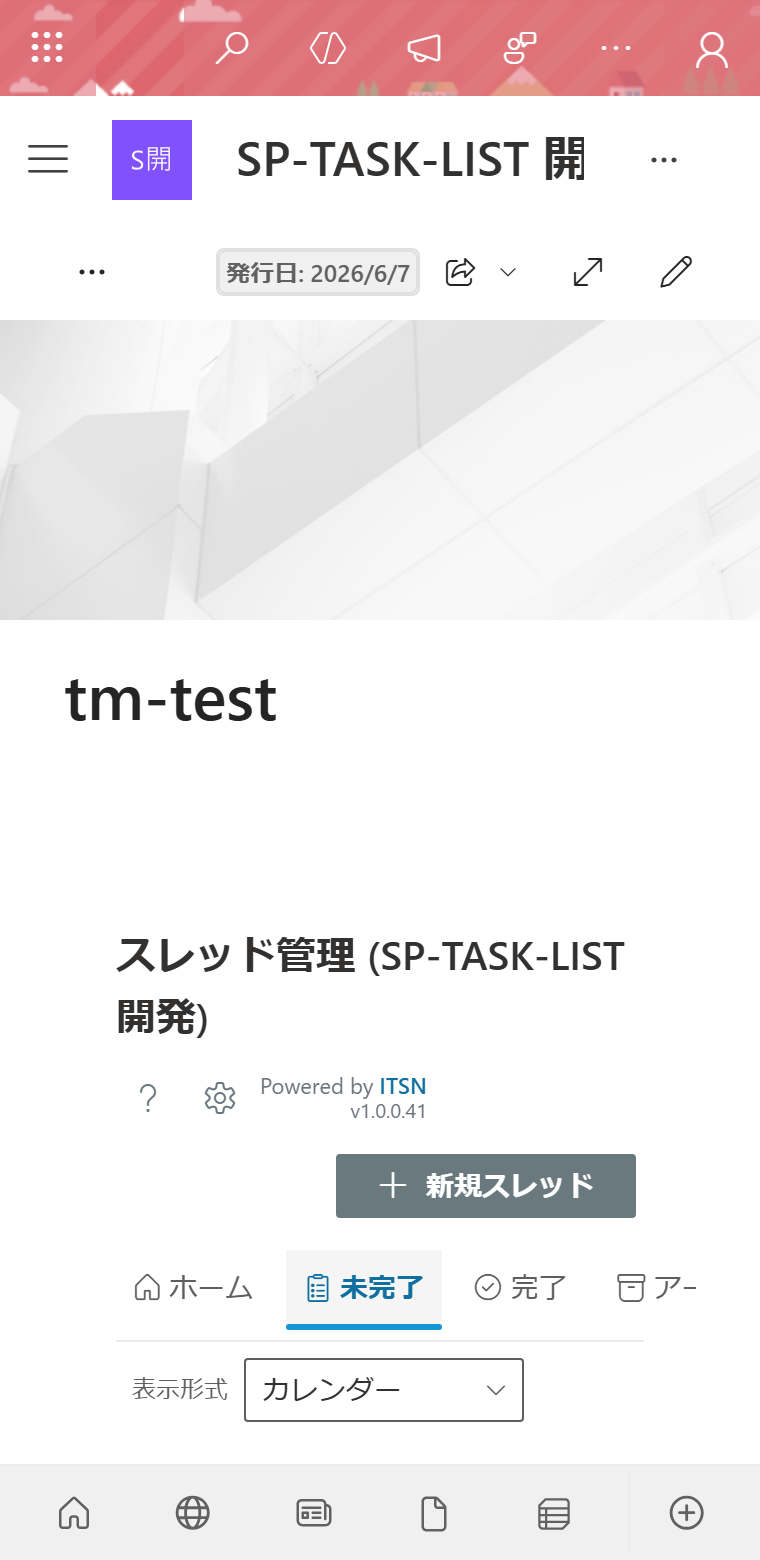
v1.0.0.12 delivered a major UI/UX overhaul. The latest v1.0.0.85 adds Calendar due-date tray, Gantt baseline, templates, recurring threads, Compose (quick add), and offline resilience. Every feature runs inside each team's own SharePoint site — no central server, no external SaaS dependency.
Automatically ingests Teams channel threads and separates them into pending and completed. Title, author, status, due date, priority, and tags — all six fields in one view.
Click any cell to edit assignee, status, due date, or tag directly. Optimistic concurrency control keeps simultaneous edits from multiple users safe.
Filter by status, priority, tag, assignee, and due-date range. Partial-match search across title, notes, and author. State is persisted in the URL and survives page reload.
Four notification types sent directly via Microsoft Graph API: completion → channel post; assignee assignment / due-date reminder (approaching & overdue) / in-note @mention → personal Activity Feed. 24-hour throttle prevents notification fatigue. No external services or additional licenses — fully inside Teams.
No PowerShell required when deploying to a new team. One click on "Auto Setup" idempotently provisions all 9 lists and every column.
Only M365 Group owners can enable notifications, select target channels, and change recipients. Regular members see settings as read-only. Configuration stays inside the team's SharePoint, inheriting standard permissions.
Every operation is written to DiagnosticsLog with a correlationId. Trace any user action end-to-end, and diagnose exactly where something went wrong.
Works both as a SharePoint web part and as a Teams channel tab. Same code, same data, same permission model.
Data stays inside each team's SharePoint site. No central server, no central database. Your team's information lives within your team.
Edits are auto-saved after an 800ms debounce — no forgotten Save button. If another user saved first, conflict detection shows a merge prompt. Optimistic concurrency keeps multi-user editing safe.
Stale-while-revalidate caching makes every launch after the first near-instant. The previous cold-start of 11.6 s is gone. The UI renders immediately from cache while fresh data is fetched silently in the background.
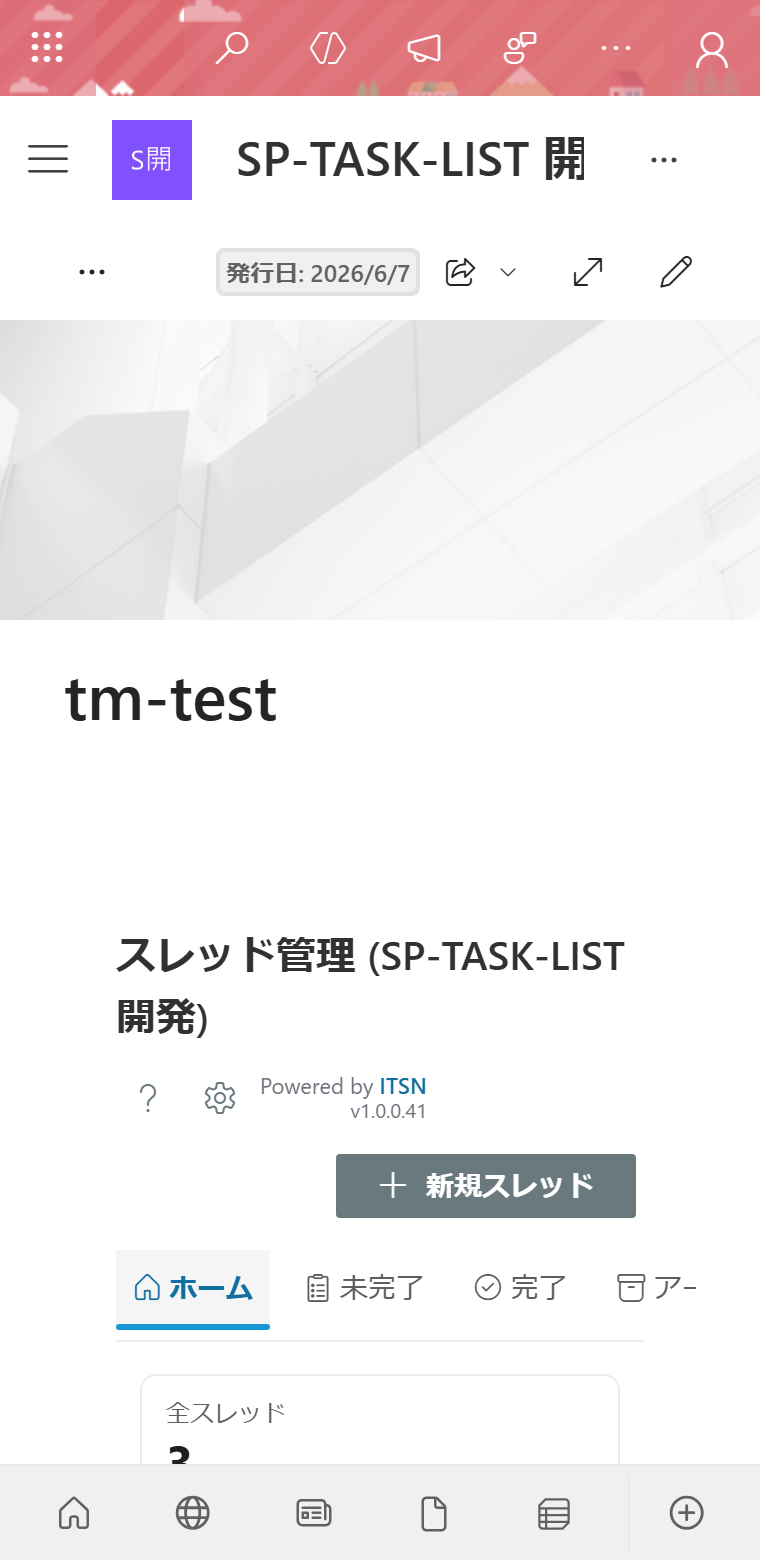
A master-detail card-hybrid layout shows list and detail side by side without leaving the page. Right-click any row for instant access to: open chat / assign to me / assign to someone / change status / change priority / set due date. On mobile (<600 px) the detail panel goes full-screen with a back button and 44 px+ touch targets.
Status expands to five values: Not Started / In Progress / In Review / On Hold / Completed. Assignee is chosen from a searchable dropdown of M365 Group members (unassigned allowed). Sorting by assignee always puts unassigned items at the bottom — "nobody owns this" is unmissable.
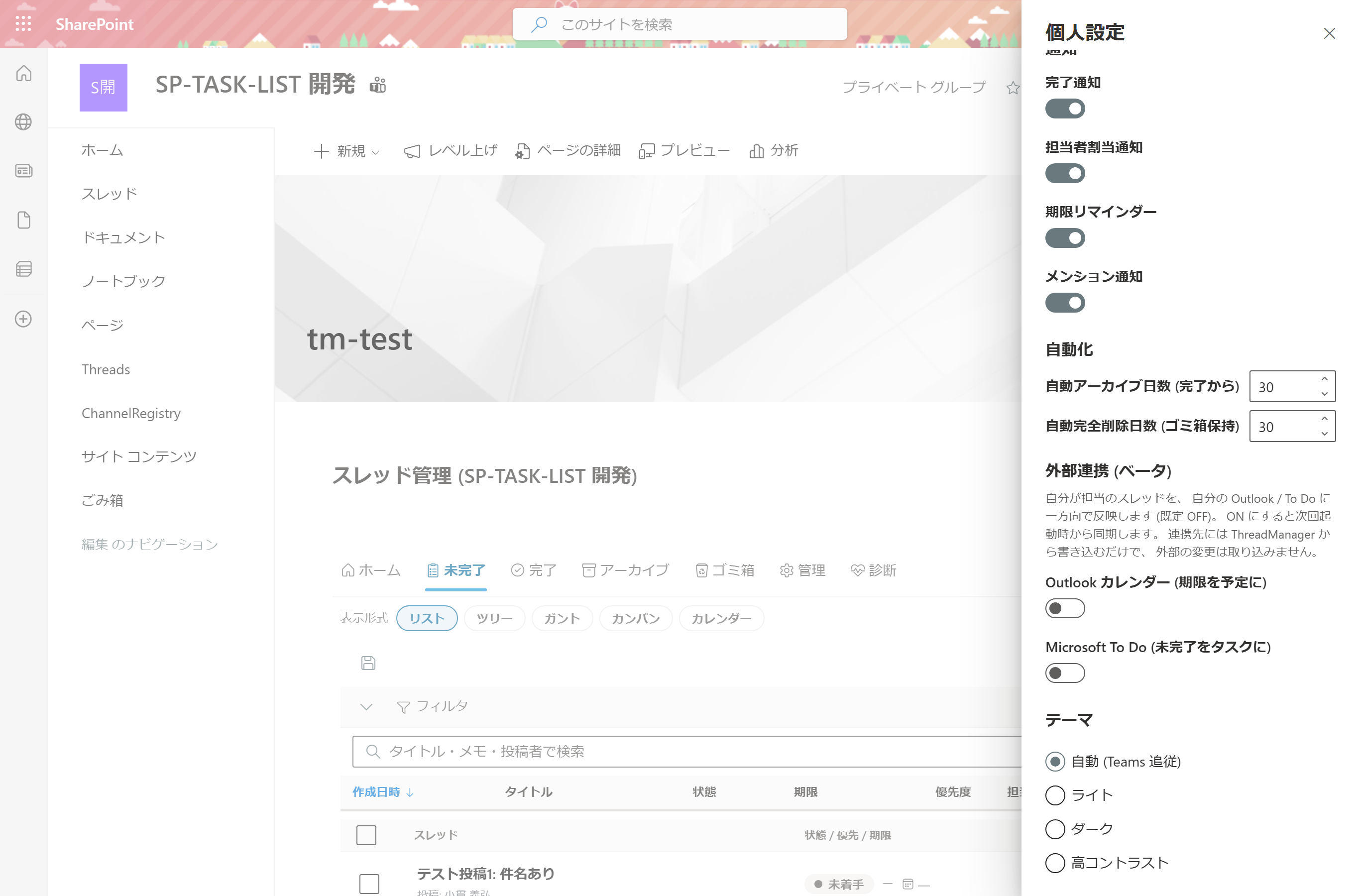
Quick search is always visible; advanced filters collapse with an applied-count badge to preserve screen real estate. New threads fire an unread indicator (blue dot + bold) dismissed with one click. Type @ in a note to bring up a member picker — the mentioned user receives a badge and a Teams Activity Feed notification.
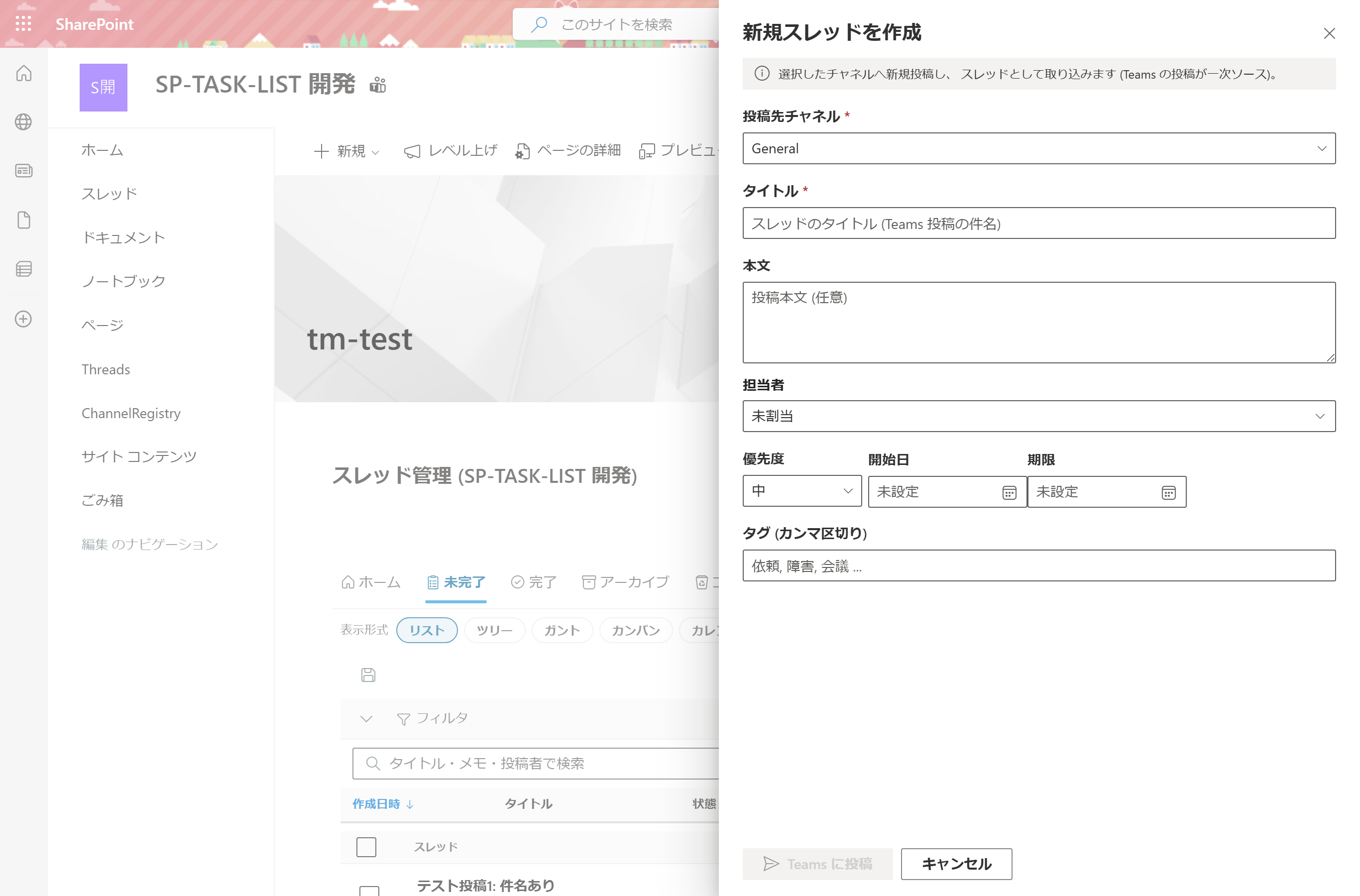
Tap "New Thread" in the top-right to open the Compose panel. Fill in the target channel, title, body, assignee, priority, tags, and due date — then post directly to Teams. The thread is immediately tracked in ThreadManager. No need to switch to Teams and post separately; the entire flow from creation to management stays in one place. (Posting requires an explicit button press — no unintended auto-posting.)
Browse threads by deadline in a monthly or weekly calendar. Threads without a due date collect in a persistent tray at the bottom of the view — drag any chip onto a date cell to assign that deadline. Deciding "when to do it" becomes visual and instant.
View threads as timeline bars. Turn on baseline mode to display two bars per thread: planned (scheduled start → due) and actual (begun → completed), with delays and early completions color-coded. Threads without dates appear as empty lanes — drag to set start and due date on the spot.
Drag cards across Not Started, In Progress, In Review, and On Hold columns to update status intuitively. The Completed column is hidden in the pending scope so you can focus on work in flight.
Save frequently used threads as templates (title, assignee, priority, tags, due date, body). Hit "Create now" to review the content, then post directly to a Teams channel and have it tracked immediately. Templates are shared across the team, making recurring task setup instant.
Attach a recurrence rule (daily / weekly on a chosen day / monthly on a chosen date) to any template. When the scheduled day arrives, ThreadManager presents the pending generation for your review — you confirm before it posts, so your channel never fills with unintended automated messages.
Keep editing even when your connection drops — on a job site or during a commute. Changes made while offline are safely queued on-device and automatically retransmitted the moment connectivity is restored. A banner with a pending-count indicator appears during the offline period. No more "I typed it but it didn't save."
Enable from personal settings to sync your assigned threads to your own Outlook Calendar (due dates become calendar events) and Microsoft To Do (pending threads become tasks). Sync is one-way (ThreadManager → external) and off by default — only the users who need it opt in.
Built on the Microsoft 365 standard stack (SharePoint Framework + Microsoft Graph). No additional servers or licenses required.
SharePointWebPart / TeamsTab / TeamsPersonalApp. Can be added to SharePoint site pages or as a Teams channel tab.ChannelMessage.Read.All reads channel messages and ingests them as task threads /
Channel.ReadBasic.All retrieves basic channel information /
ChannelMember.Read.All retrieves channel members to populate assignee candidates /
Team.ReadBasic.All retrieves basic team information /
Group.Read.All retrieves team (group) info and owner status /
User.ReadBasic.All resolves display names (basic profile only) /
ChannelMessage.Send posts completion notifications back to the channel /
TeamsActivity.Send sends Teams activity (feed) notifications /
Calendars.ReadWrite the signed-in user's own calendar (/me/events) /
Tasks.ReadWrite creates tasks in the signed-in user's own To Do (/me/todo)AllSites.FullControl (scoped to the web part deployment site only)Calendars.ReadWrite / Tasks.ReadWrite apply only to the signed-in user's own data — no other user's data is ever accessed.
Designed so everyone from end users to tenant admins can say "this is good."
Choosing what not to build is itself a design decision. We make explicit what we intentionally leave out so the product stays lean. We also share our public release plans.
Comments, attachments, and emoji reactions already live in the Teams thread — we intentionally do not rebuild them. ThreadManager is not another heavy task-management tool competing with what Teams provides; it is a thin progress layer on top of Teams, adding only what Teams lacks: structured status tracking.
The benefits of this restraint: ① low learning curve, ② zero disruption to existing Teams habits, ③ team data stays inside SharePoint, ④ predictable upgrade impact.
We are currently in the phase of expanding internal usage and maturing features. v1.0.0.12 delivered a major UI/UX overhaul (4-type native notifications, auto-save, cache acceleration). By v1.0.0.85 we further added Calendar due-date tray, Gantt baseline, templates, recurring threads, Compose (quick add), and offline resilience. The day-to-day experience has changed substantially.
A public release is planned at the next milestone. We are targeting a release to AppSource / the SharePoint Store within 2026 (timing is a target, not a guarantee). Distribution model and pricing will be shared on request. The detailed feature roadmap is internal but can be discussed under NDA.
Tenant admin tasks and per-team owner tasks are clearly separated. A team familiar with SharePoint can be up and running in 30 minutes.
Download sp-task-list.sppkg directly from this page. Notifications use Teams native capabilities (Microsoft Graph), so no additional templates are needed. Save it anywhere.
Upload sp-task-list.sppkg to the App Catalog in SharePoint Admin Center. Click "Deploy" to enable it tenant-wide.
# SharePoint Admin Center
> https://<tenant>-admin.sharepoint.com
> Apps → App Catalog → "Add an app"
> Upload sp-task-list.sppkg
> Click "Deploy"
In SharePoint Admin Center → "API access," approve all pending requests. All Microsoft Graph scopes below (10) plus the SharePoint permission are required.
# Approve the following (Microsoft Graph: 10 scopes)
✓ Microsoft Graph: ChannelMessage.Read.All
✓ Microsoft Graph: Channel.ReadBasic.All
✓ Microsoft Graph: ChannelMember.Read.All
✓ Microsoft Graph: Team.ReadBasic.All
✓ Microsoft Graph: Group.Read.All
✓ Microsoft Graph: User.ReadBasic.All
✓ Microsoft Graph: ChannelMessage.Send
✓ Microsoft Graph: TeamsActivity.Send
✓ Microsoft Graph: Calendars.ReadWrite
✓ Microsoft Graph: Tasks.ReadWrite
✓ SharePoint:       AllSites.FullControl
In SharePoint Admin Center → "Apps for Teams," trigger a sync. The app typically appears in the Teams Apps store within a few hours, up to 24 hours.
Choose your preferred deployment method below. Both options use the same code and the same data.
# Option A: SharePoint page web part
> Team SharePoint site → Edit
> "+" button → select "ITSN ThreadManager"

# Option B: Teams channel tab
> Teams channel → "+" to add a tab
> Search "ITSN ThreadManager" → Add
The setup screen appears automatically on first launch. Click "Start Auto Setup" to idempotently provision all 9 lists and every column. A progress bar shows the status.
# Lists auto-provisioned (9)
✓ Threads           thread records (author, assignee, due date, status, tags)
✓ Milestones        milestones (key dates and target windows)
✓ ActivityLog       activity log of user actions
✓ Reactions         emoji reactions
✓ ThreadTemplates   thread templates
✓ IntegrationLinks  external integration links (Outlook / To Do)
✓ WebhookConfig     webhook integration settings (beta)
✓ ChannelRegistry   registered target channels
✓ DiagnosticsLog    observability (diagnostics) log
From the Manage tab, click "+ Register Channel" to select the target channels. In the Notifications tab, toggle Teams native notifications (completion / assignee assignment / due-date reminder) on or off. You're ready to go.
Required if: guests (external users) will use ThreadManager. Optional for member-only deployments.
Background: external sharing on the App Catalog site is disabled by default, so without the Public CDN a guest's browser cannot load the web part and it fails to start. Serving static assets via the CDN lets it load for guests too.
Propagation time: after configuration, it can take anywhere from 15 minutes to several hours to take effect.
# Run as a SharePoint administrator
Connect-PnPOnline -Url https://<tenant>-admin.sharepoint.com -Interactive
Set-PnPTenantCdnEnabled -CdnType Public -Enable $true
Add-PnPTenantCdnOrigin -CdnType Public -OriginUrl "*/CLIENTSIDEASSETS"
For member-only deployments, this step is optional — decide based on your organization's security policy.
Here's a fact-based explanation of how ThreadManager handles data.
Bring ThreadManager to your team.
Download the package from this page right now. For deployment support, customization, or technical questions, feel free to get in touch.
Download .sppkg ↓