
CredManager
Share passwords and MFA secrets with your team, still encrypted, with nothing but a Microsoft 365 sign-in.
Sign in and it's ready to use. Connection endpoints resolve automatically, and credentials are shared securely across multiple PCs and teams with envelope encryption. Personal credentials are isolated on the local device with DPAPI, structurally preventing accidental sharing. This Windows desktop app comes standard with offline recovery, a backup path, and management of 9 MFA types.
Shared passwords, scattered in plaintext across spreadsheets and chat. CREDENTIAL SPRAWL — SOLVED BY M365 TRUST
Shared passwords and MFA secrets are left in plaintext in spreadsheets and chat, with no way to trace who accessed what and when. CredManager resolves this at the root: only people signed in via M365 authentication can decrypt, and only according to their access tier.
Shared accounts and MFA secrets circulate unencrypted, with no way to track who viewed them or when.
Passwords and MFA device information known only to one person are lost when they leave or replace their device.
The boundary between personal and shared use is blurry, and credentials sometimes end up saved to a shared folder unintentionally.
Cloud-dependent tools become inaccessible during an outage, leaving no business continuity guarantee.
The features frontline operations need — nothing missing, nothing extra. FEATURES BUILT FOR DAILY OPS
Authentication, sharing, the personal tier, MFA management, standard desktop UI, and business continuity — all delivered consistently in v0.1.0 (release build).
Just sign in with Microsoft 365 / Entra ID to launch. Connection endpoints (SharePoint, Key Vault) resolve automatically, so users need no prior setup.
Data is encrypted with the key for its access tier and shared with authorized members via SharePoint. Tiers a user is not permitted to see are excluded from the list, and cannot be decrypted.
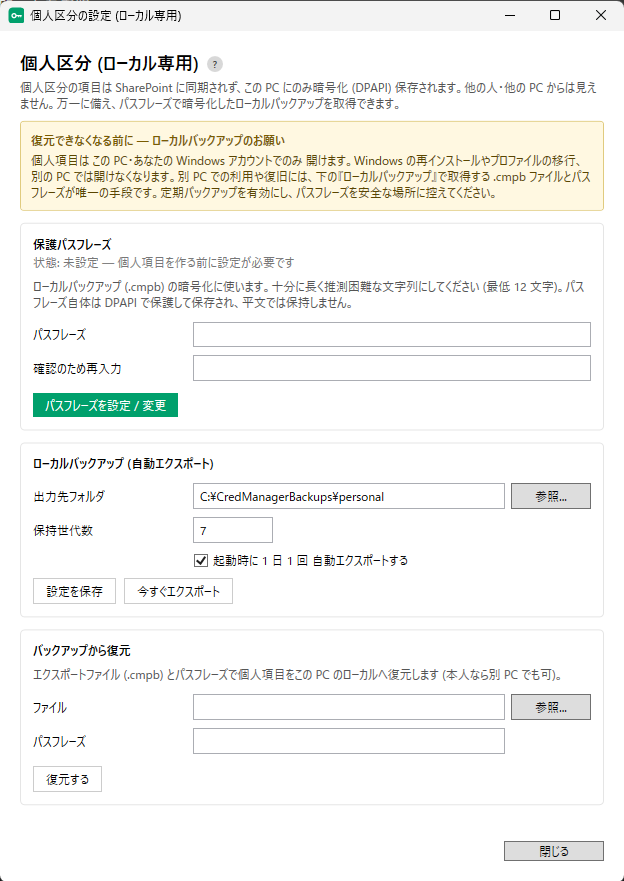
Personal credentials are not synced to SharePoint; they're encrypted with DPAPI and stored on the device. This structurally prevents accidental sharing, and also supports restoring to another PC from a passphrase-protected, encrypted local backup (with generation management).
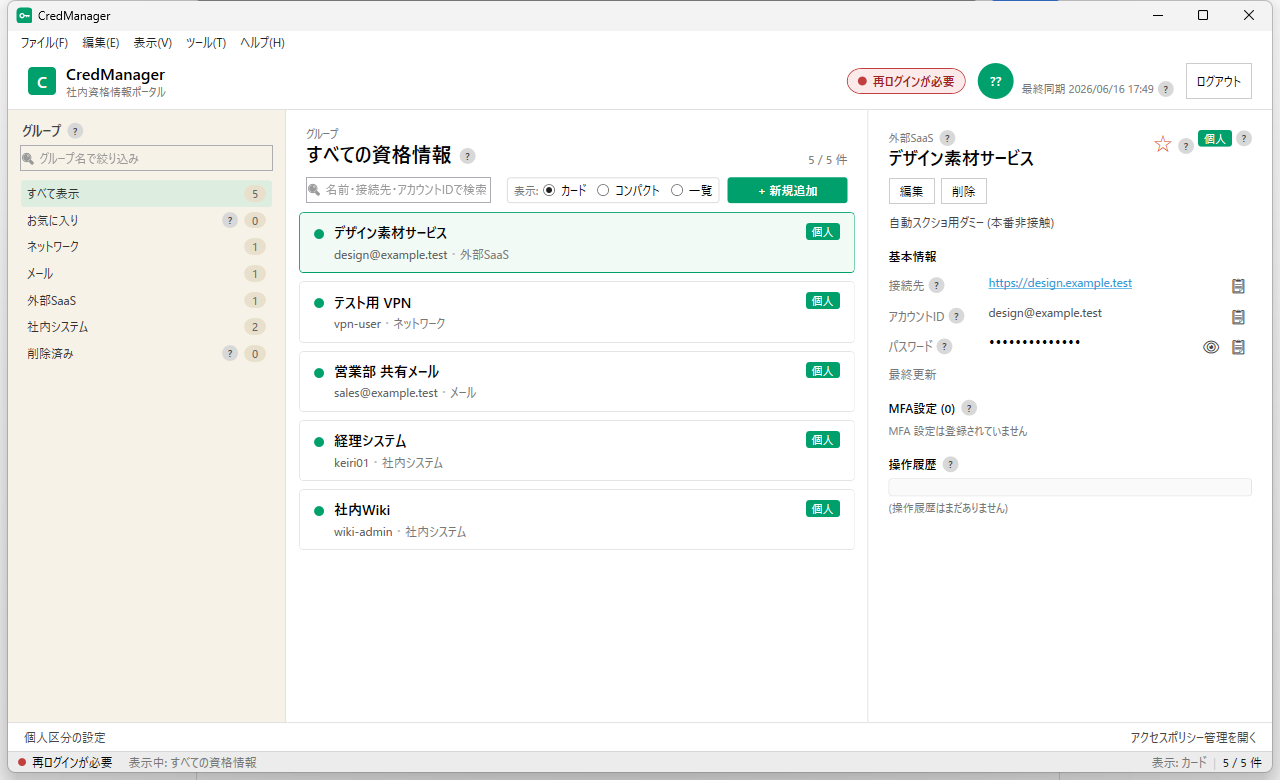
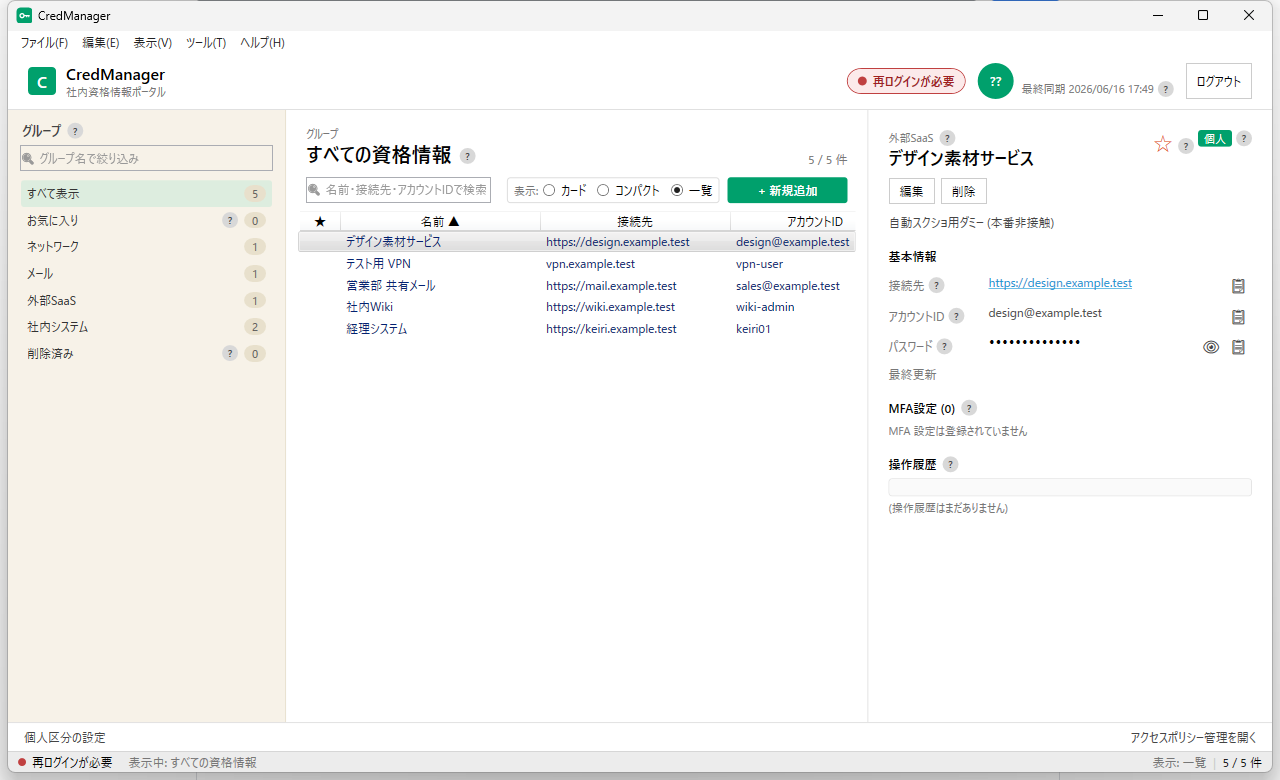
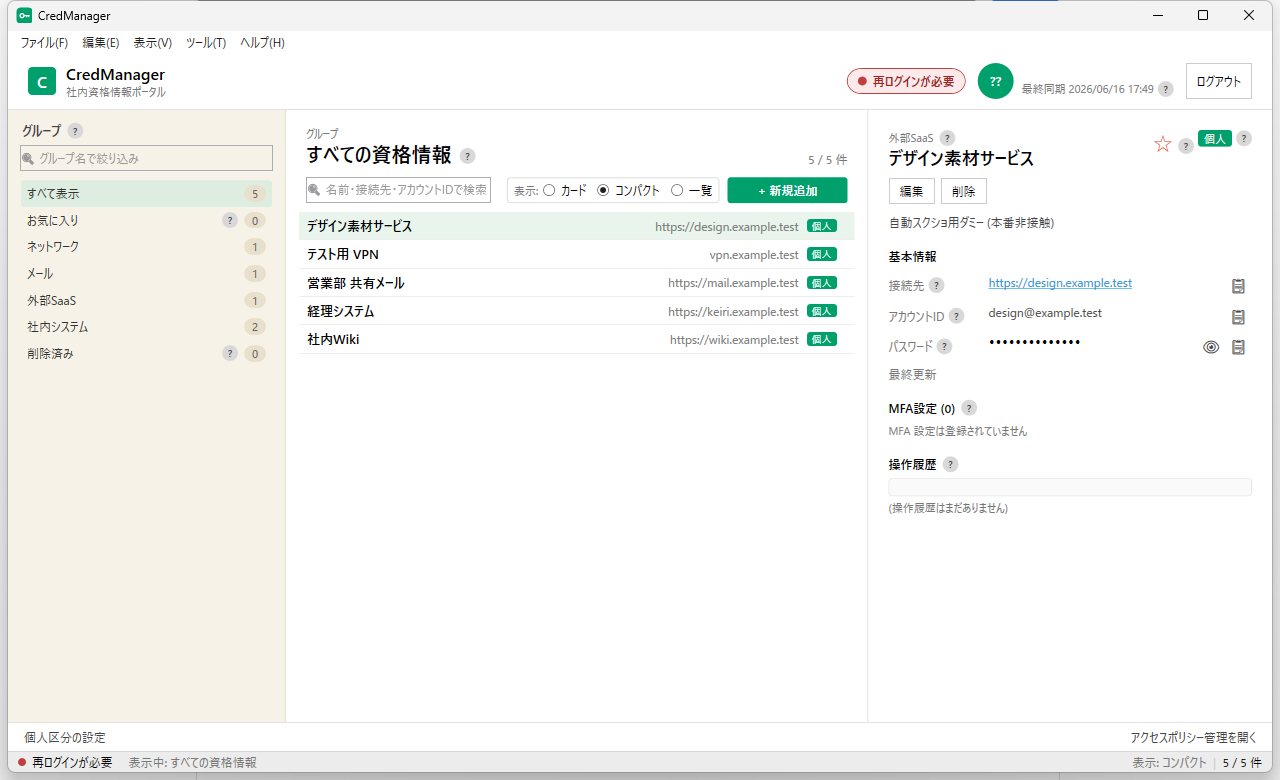
Switch the central list between card, compact, and list (with sortable columns) views. Your choice is saved for the next launch.
Includes a right-click context menu (details, edit, favorite, move tier, delete), a menu bar (File / Edit / View / Tools / Help), a status bar (connection status, item count, filter), and non-modal completion notifications. Search, group filtering, and favorites are also supported.
Manages 9 types: authenticator app, TOTP, SMS, voice, email, hardware token, passkey/biometric, backup codes, and other. TOTP supports live 6-digit generation, a remaining-seconds countdown, and QR display. OTP secrets are also stored encrypted.
Restore in read-only mode from a backup file + passphrase, with no cloud communication at all. Guarantees business continuity during a disaster or cloud outage.
Records create, edit, move, delete, restore, view, and authentication operations in a structured audit log (with correlation IDs; secrets are masked and never output). Provides the granularity needed to trace activity after the fact.
An extension-based integration (Chrome extension → native messaging → the app) that imports credentials entered in the browser into CredManager. Currently at an internal PoC stage, ahead of general availability. This section and the download will be updated once finalized.
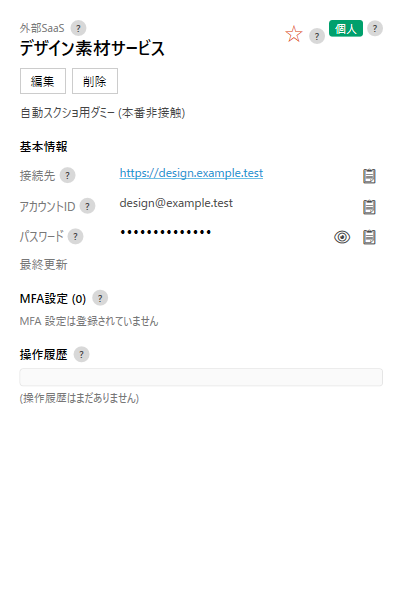
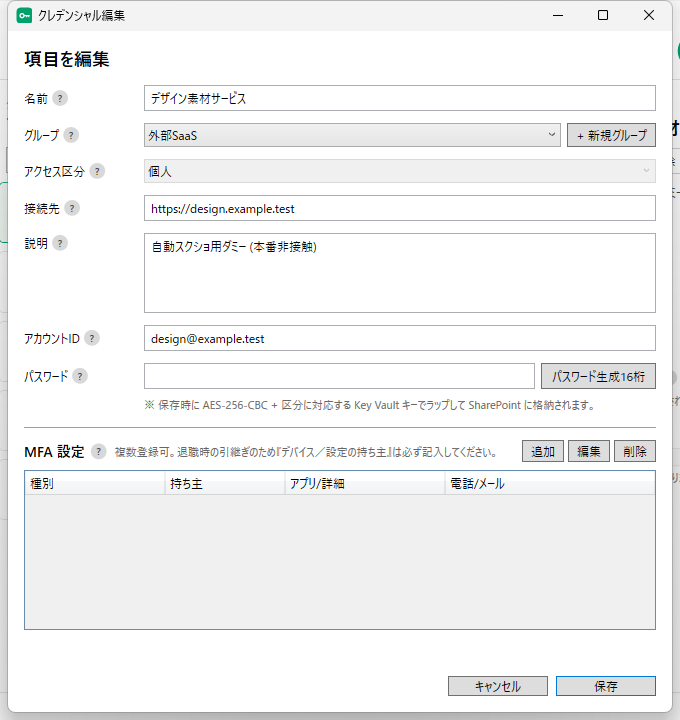
Screen previews. UI PREVIEW (DUMMY DATA)
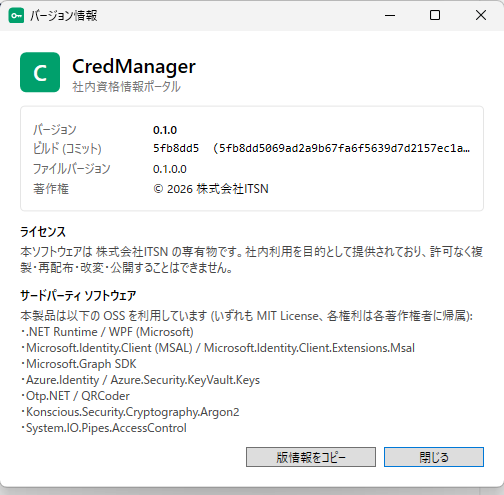
Key screens captured automatically with FlaUI. All images use dummy data and contain no real data or real credentials (the connection endpoint is shown as example.test, and passwords are masked).
From team sharing to personal storage and business continuity. SCENARIOS FOR EVERY TEAM
Covers day-to-day credential operations for everyone from team members in each department to IT administrators.
Only authorized members can decrypt and use the credentials. Who accessed what and when is recorded in the audit log.
The personal tier is never synced to SharePoint — it's stored on the device, encrypted with DPAPI. The design structurally prevents accidental sharing.
Take a passphrase-protected, encrypted local backup in advance, then restore it on the other PC. Because DPAPI is device-specific, migration is only possible via a backup.
Offline recovery mode lets you view data read-only from a backup + passphrase with no cloud communication. Usable as part of your business continuity plan (BCP).
System requirements. SYSTEM REQUIREMENTS
No additional runtime required. Installs without administrator privileges.
Desktop app (single exe, SelfContained / SingleFile). No .NET runtime required (bundled).
install.bat places the app in the user scope (%LOCALAPPDATA%\Programs\CredManager).SETUP-GUIDE.md for details.Specifications. TECHNICAL SPECIFICATIONS
| Version | 0.1.0 (FileVersion 0.1.0.0) |
|---|---|
| Encryption (shared tier) | Envelope encryption (AES-256 for the payload; the data key is wrapped with an Azure Key Vault key per tier). Randomness sourced from a CSPRNG. |
| Encryption (personal tier) | Local protection via DPAPI (CurrentUser). |
| Encryption (backup) | Argon2id key derivation → AES-256-GCM (authenticated). |
| Access tiers | 3 color-coded tiers shown as badges. Decryption eligibility is determined by group membership (tiers without permission are excluded from the list). |
| MFA | Manages 9 types. Live TOTP generation (6-digit, remaining-seconds countdown, QR display). OTP secrets are also encrypted. |
| View modes | 3 modes: card / compact / list (sortable columns). Your choice is saved for the next launch. |
| Business continuity | Fully offline, read-only recovery; local backup generation management; structured audit log. |
| Bundled files (7) | CredManager.exe / install.bat / helpTexts.json / setup-access-tiers.ps1 / setup-sharepoint.ps1 / SETUP-GUIDE.md / README.txt |
Runs entirely within Microsoft 365 / Azure. MICROSOFT CLOUD — FULLY IN YOUR TENANT
Everything runs entirely within Microsoft 365 / Azure — no external cloud such as AWS is used.
System architecture. SYSTEM ARCHITECTURE
A two-layer architecture that runs entirely within the client and the Microsoft cloud.
┌────────────────────────────────────────────────────────────┐
│  Windows Desktop App (CredManager.exe)                      │
│  - Sign in via M365 / Entra ID (Entra authentication)       │
│  - 3 view-mode UI, right-click menu, live TOTP generation   │
└───────────────┬─────────────────────────────────┬──────────┘
                │ Shared tier                     │ Personal tier
                ▼                                 ▼
┌────────────────────────────┐    ┌─────────────────────────────────┐
│  SharePoint List            │   │  Local Device (DPAPI)            │
│  (ciphertext + wrapped key) │   │  - No cloud sync                 │
└──────────┬─────────────────┘    │  - Encrypted backup              │
           │                      │    (Argon2id -> AES-256-GCM)     │
           ▼                      └─────────────────────────────────┘
┌─────────────────────────────┐
│  Azure Key Vault             │
│  (per-tier KEK, RBAC mode)   │
└─────────────────────────────┘
Never hold plaintext. Separate by tier. Keep every record. SECURITY & COMPLIANCE POSTURE
From design through operations, we hold to the principles an organization needs to handle credentials correctly as an information asset.
The shared tier uses envelope encryption — AES-256 with the data key wrapped by a Key Vault key. The personal tier uses DPAPI (CurrentUser). Portable backups use Argon2id → AES-256-GCM (authenticated). Randomness is sourced from a CSPRNG. Plaintext passwords are never stored anywhere.
Each access tier uses a separate KEK, and decryption eligibility is determined by group membership. Tiers a user isn't permitted to see are not shown in the UI and cannot be decrypted. Opening SharePoint directly does not expose the passwords.
Records create, edit, move, delete, restore, view, and authentication operations in a structured audit log. Each entry carries a correlation ID, and secret information is masked and never output. Provides the granularity needed to trace activity after the fact.
The app has no authentication of its own — sign-in uses your organization's Microsoft 365 (Entra ID). MFA, Conditional Access, and immediate deactivation upon departure all run through your organization's existing mechanisms.
An emergency recovery procedure (break-glass) is in place, and operation has been verified on real hardware based on the RUNBOOK.
We have carried out a self-assessment against ISO/IEC 27001:2022 controls and continue to improve.
* This is a self-assessment, not a formal certification conformity determination (reflection in the SoA and formal audit are decided by the ISMS secretariat).
Download. FREE — v0.1.0 RELEASE BUILD
We publish the release build v0.1.0 (build 5fb8dd5). Requires Windows 10 / 11 (x64). A Microsoft 365 / Entra ID account is required to use it.
Bundles 7 files: a single exe, install.bat, helpTexts.json, setup-access-tiers.ps1, setup-sharepoint.ps1, SETUP-GUIDE.md, and README.txt.
Extract the ZIP and run install.bat to install to %LOCALAPPDATA%\Programs\CredManager (no administrator privileges required; idempotent). No .NET runtime is required.
- File name
- CredManager-v0.1.0-5fb8dd5.zip
- Size
- 70,399,331 bytes (approx. 67.1 MiB)
- SHA-256
- 403E06BC875B7A2DD85803436541163A0A6163131ACD3779132F0C82BAA3F329
As the app is not yet code-signed, on first launch you may see "Windows protected your PC."
Workaround: click More info → Run anyway. Alternatively, right-click the ZIP file → Properties → check Unblock before extracting. See the bundled
README.txt for details.
Verifying integrity: After downloading, run Get-FileHash .\CredManager-v0.1.0-5fb8dd5.zip -Algorithm SHA256 in PowerShell and confirm it matches the SHA-256 above.
Installation: Extract the ZIP → run install.bat (installs to %LOCALAPPDATA%\Programs\CredManager, creates a shortcut, no administrator privileges required, idempotent). You can also launch CredManager.exe directly from the extracted folder.
Administrator's initial setup: Requires configuring a SharePoint Online site, Azure Key Vault (RBAC), and Entra groups for the access tiers (see the bundled SETUP-GUIDE.md for details).
Internal use, free of charge: Provided free of charge during the internal use phase. Paid rollout details will be announced separately.
The administrator's initial setup happens once. Users just sign in. SETUP FOR ADMINS — THEN JUST SIGN IN
An administrator prepares the organization side just once. After that, users simply launch the exe and sign in with Microsoft 365.
Register the app in Entra ID and grant admin consent for sign-in permission and delegated access permission to SharePoint. See the bundled SETUP-GUIDE.md for details.
Create an Azure Key Vault (RBAC mode), issue one key per access tier, and assign per-key usage permissions to the corresponding Entra groups. The bundled setup-access-tiers.ps1 assists with setup.
Prepare a private SharePoint site for CredManager, and use the bundled setup-sharepoint.ps1 to create the list structure for encrypted storage.
Launch CredManager.exe and sign in with your Microsoft 365 account. Connection endpoints resolve automatically, so users need no additional configuration.
Ready to try CredManager?
You can get started with the download right away. For rollout consultation, trial use, or customization requests, please reach out to your IT department or ITSN.
Guides & documentation. DOCUMENTATION
For detailed procedures, see the documentation bundled in the ZIP.
Detailed setup instructions for IT administrators. Covers Azure / SharePoint configuration steps and troubleshooting.
Bundled: SETUP-GUIDE.mdCovers what users need to know: installation steps, how to work around the SmartScreen warning, and notes on the personal tier.
Bundled: README.txtPlease refer to the documentation bundled in the ZIP.
Frequently asked questions. FREQUENTLY ASKED QUESTIONS
Do I need administrator privileges to install it?
install.bat places the app in the user scope (%LOCALAPPDATA%\Programs\CredManager). It installs without administrator privileges.I see "Windows protected your PC" on launch.
README.txt for details.Can I use personal tier data on another PC?
Can I still view credentials if the cloud goes down?
Do I need to configure the connection endpoint?
Changelog & roadmap. CHANGELOG & ROADMAP
build 5fb8dd5
Release build
- Shared tier (Key Vault envelope encryption) + access tier control (3 levels, color-coded badges), management of 9 MFA types (live TOTP generation), 3-pane UI.
- Personal tier (local-only, DPAPI, prevents accidental sharing) + encrypted local backup (Argon2id → AES-256-GCM, generation management) / restore to another PC.
- Offline recovery mode (fully offline, read-only), break-glass backup.
- 3 view modes (card / compact / list, sortable columns) / right-click menu / standard desktop UI including menu bar, status bar, and non-modal notifications.
- Structured audit log + correlation IDs, pinned dependencies + CI (build / test / vulnerability scan) + branch protection, ISO/IEC 27001:2022 self-assessment, operations RUNBOOK, automated E2E for the most common paths, automated UI capture for deliverables.
- Move to authenticated encryption (AES-GCM) for the data payload
- Code signing (to permanently resolve the SmartScreen warning)
- General availability of browser integration (Chrome extension → native messaging)
Support & contact. SUPPORT & CONTACT
For questions and setup assistance related to internal use, please contact your IT department. Also see the setup guide (bundled SETUP-GUIDE.md).
For rollout consultation, trial use, or customization requests from outside the company, feel free to use ITSN's contact form.
Contact Form
SETUP-GUIDE.md — Detailed setup and troubleshooting for administrators
README.txt — User overview, SmartScreen workaround, notes on the personal tier